01
Create a new track record
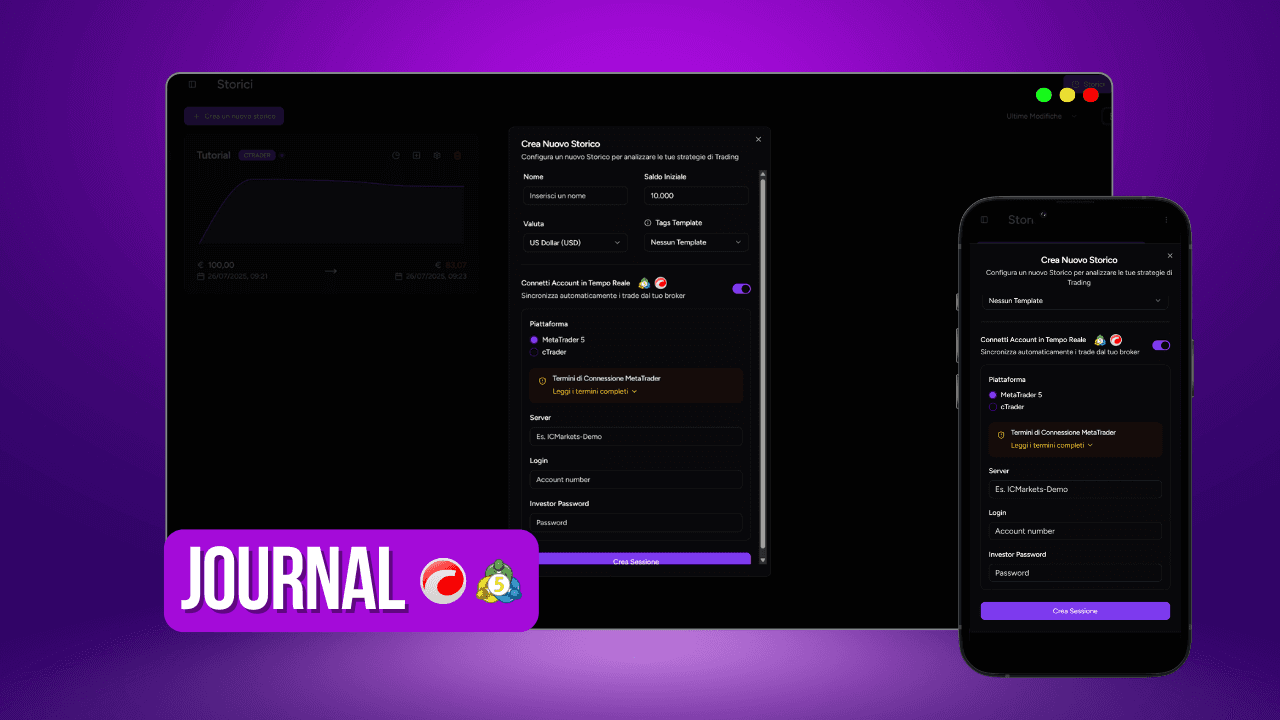
Open Journal and select Create a new track record. Choose the name, initial balance and currency. You can also apply a tag template if you already know how you want to filter the analytics.
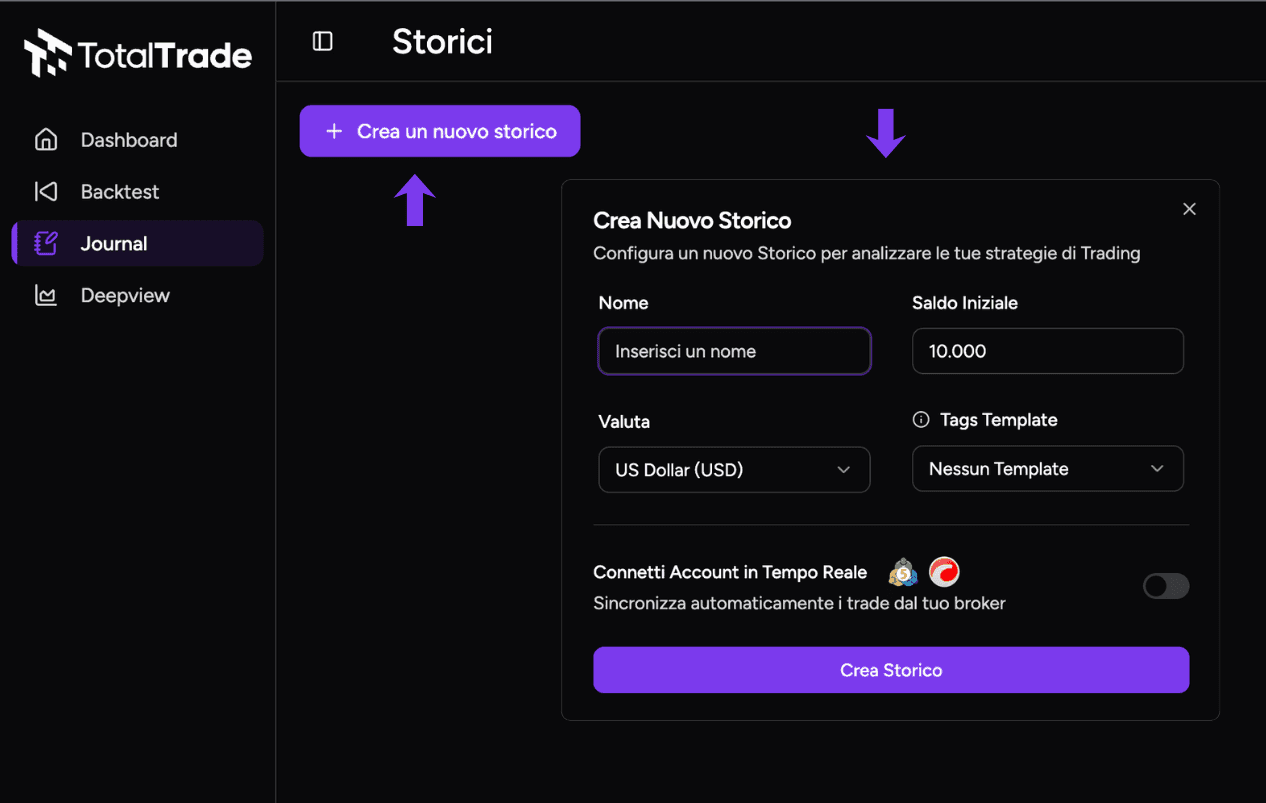
Connect MetaTrader 5 to the TotalTrade Journal and import your trades with account access that cannot place or change orders.
Try it for freeOpen Journal and select Create a new track record. Choose the name, initial balance and currency. You can also apply a tag template if you already know how you want to filter the analytics.
Under the main fields, select Connect Account in Real Time and choose MetaTrader 5. TotalTrade will open the panel where you can enter the account details.
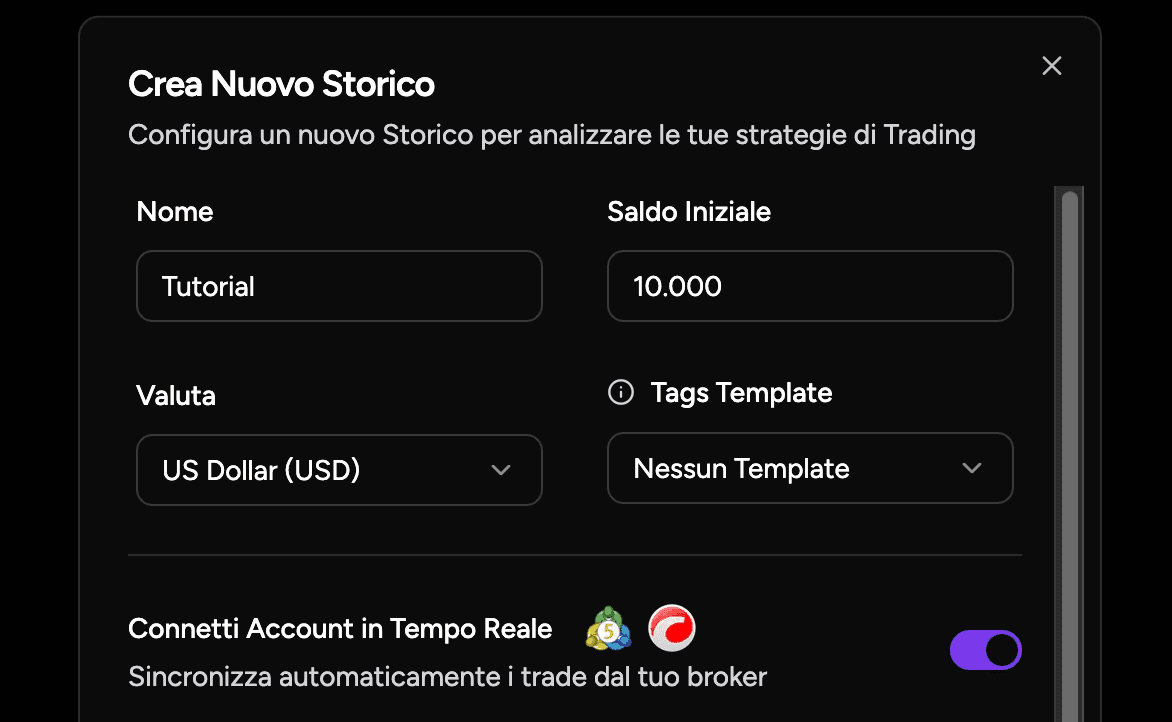
You will need the server provided by your broker or prop firm, the account login and the investor password. The investor password only allows TotalTrade to read account data. It cannot be used to place or change orders.
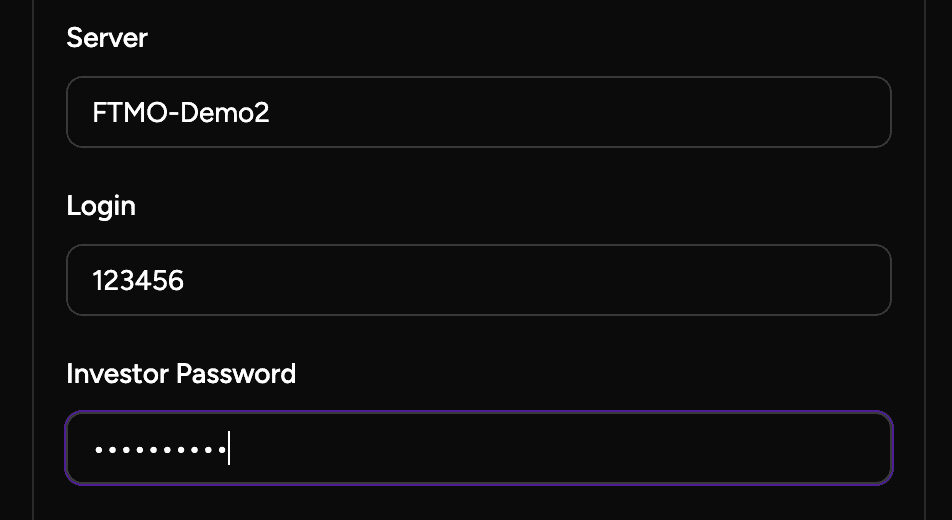
You can import the full account history, begin from a specific date or sync only new trades from now on. Select the option that fits the track record and create the session. Once connected, the Journal updates automatically. New positions opened or closed in MetaTrader 5 will appear in TotalTrade with their details and statistics.

TotalTrade brings together the tools you use every day to make trading clearer and measurable.
Start for free